
Tour of the panel
Menu, page and button names in this documentation match the admin panel's English interface. In paths like “Settings › License and plan” the page in the left menu comes first, then the section on that page.
Overview
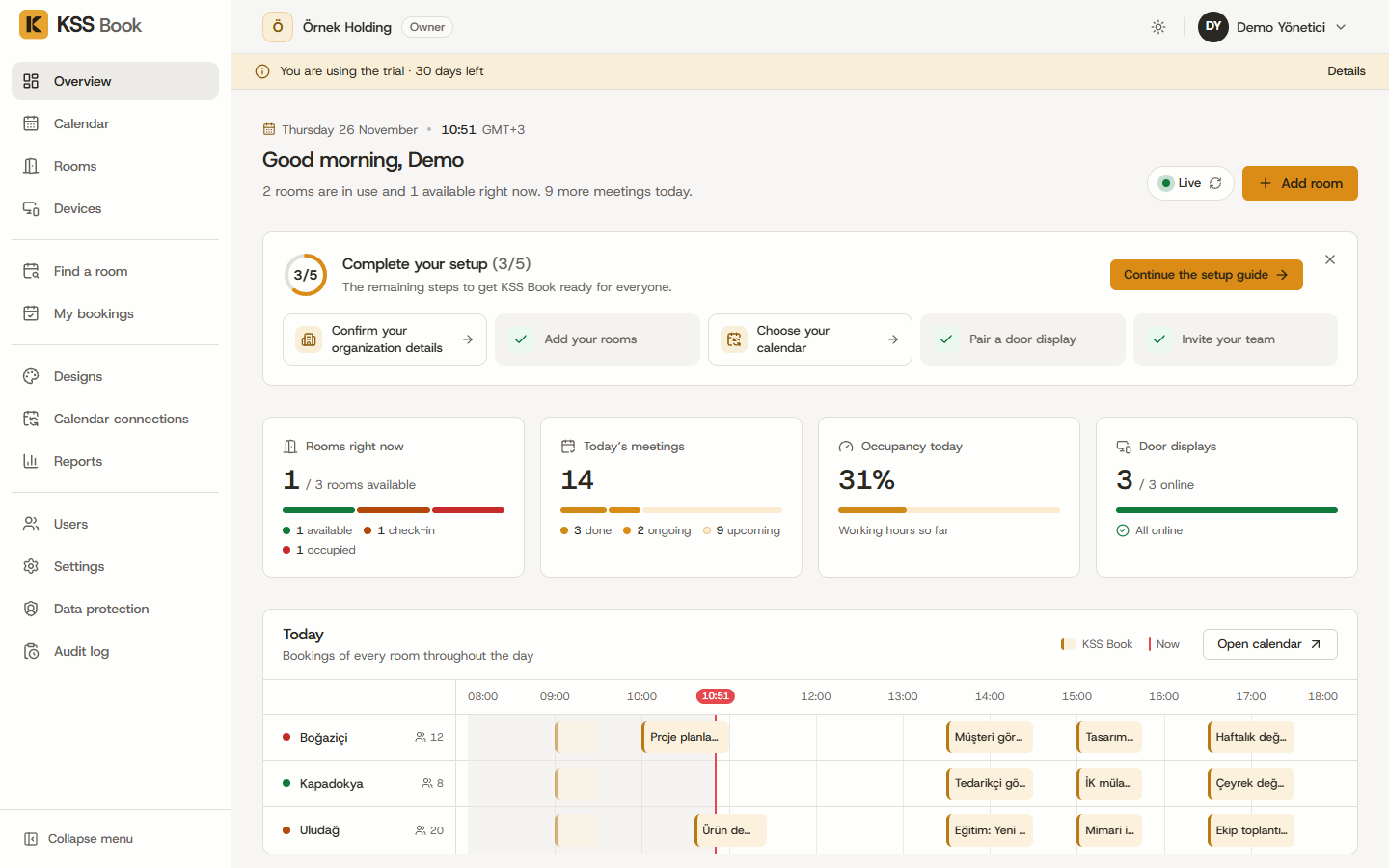
The first page of the panel. At the top is a summary of today (how many rooms are occupied, how many meetings there are), followed by these cards:
- Complete your setup: the remaining steps of the setup guide.
- Rooms right now, Today's meetings, Occupancy today and Door displays.
- Needs attention: rooms without a display, offline displays, calendar connection problems.
- Today: all rooms' bookings for the day on a timeline.
Menu
| Menu | What you do there |
|---|---|
| Overview | Live status of the rooms, setup steps, alerts |
| Calendar | Bookings of all rooms in one calendar |
| Rooms | Buildings, rooms, display actions, room design, QR code |
| Devices | Door displays and lobby displays |
| Find a room | Find a free room and book it |
| My bookings | Your own bookings |
| Designs | Door display designs and the template gallery |
| Calendar connections | Microsoft 365, Google Workspace, Exchange Server |
| Reports | Occupancy and usage statistics |
| Users | Members, roles, invitations |
| Settings | Organization, working hours, rules, privacy, security, license |
| Data protection | Retention periods, privacy notice, personal data inventory |
| Audit log | Who changed what and when |
Some pages are hidden depending on your role. People with the employee role only use Find a room and My bookings (Users and roles).
Settings
The General tab of the Settings page has cards: Organization, Working hours, Booking rules, Holidays and closures, Privacy, Branding, E-mail, Display alerts, License and plan, Clear test data, and, visible only to owners, Single sign-on (SSO) and Two-step verification. Administrators and owners can change the settings. The Developer tab is for API keys and webhooks (Developer API).
License
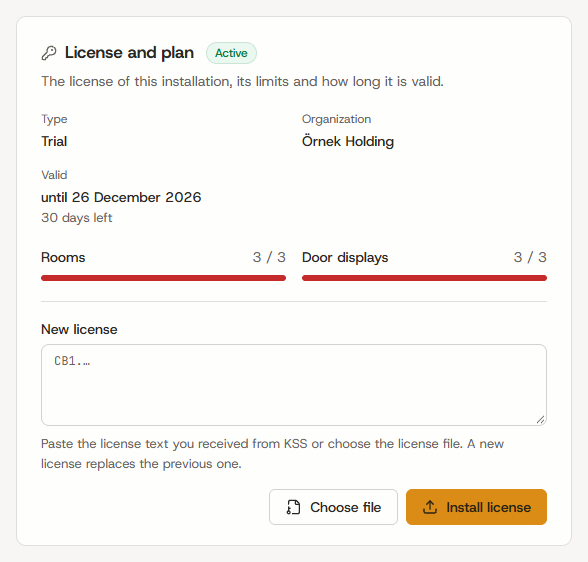
The license is set up by KSS. Its term and the room and display limits are shown under Settings › License and plan; contact KSS with any questions.