

Calendar
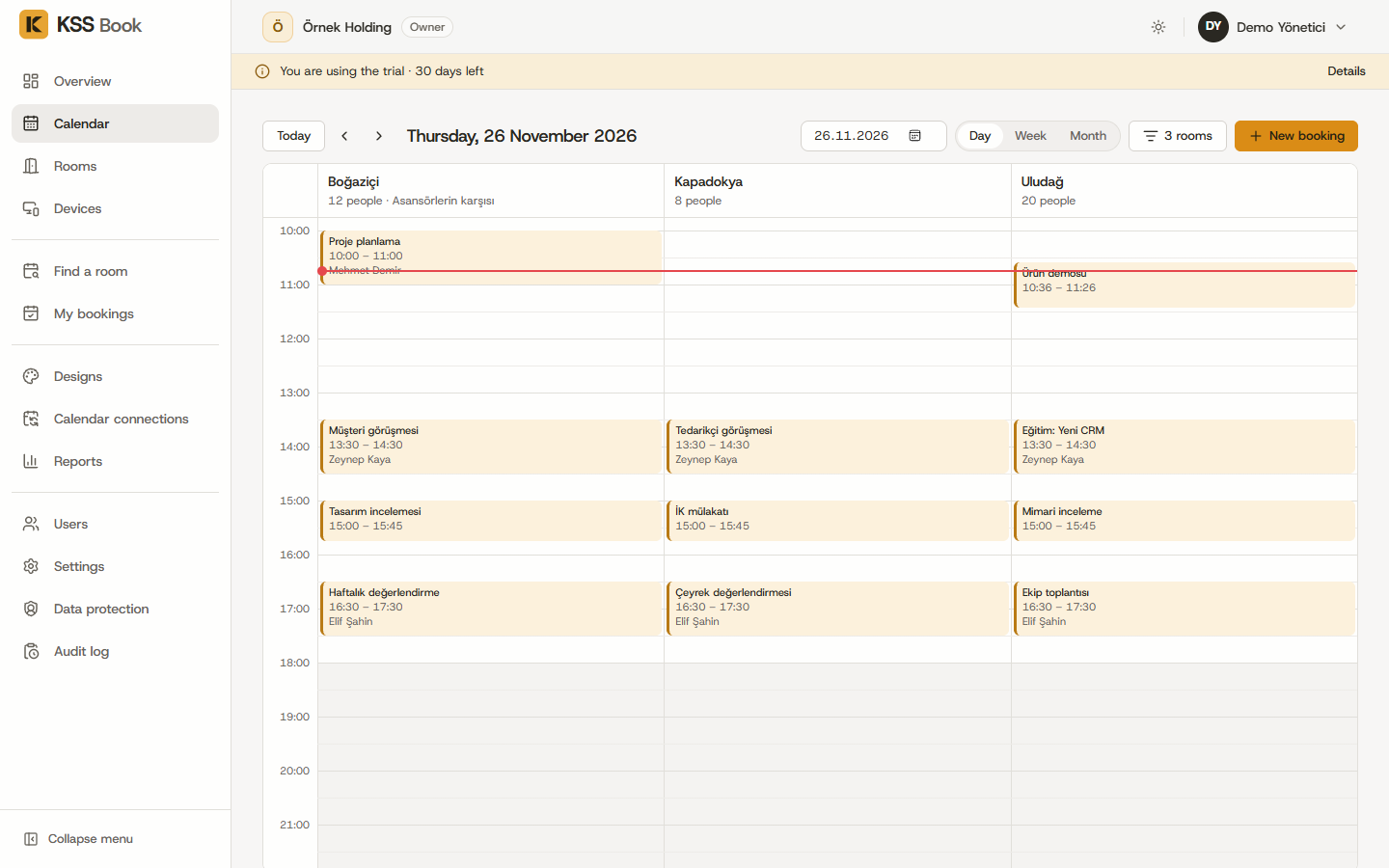
The Calendar page shows the bookings of all rooms in one place. In the Day view the rooms are side-by-side columns; there are Week and Month views too. Go to any day with Today, the arrows and the date field; choose the rooms shown with the room filter (e.g. 3 rooms).
Creating a booking
- Drag and drop: click an empty slot or drag across it; the window opens with that room and time.
- New booking: the button at the top right opens an empty window.
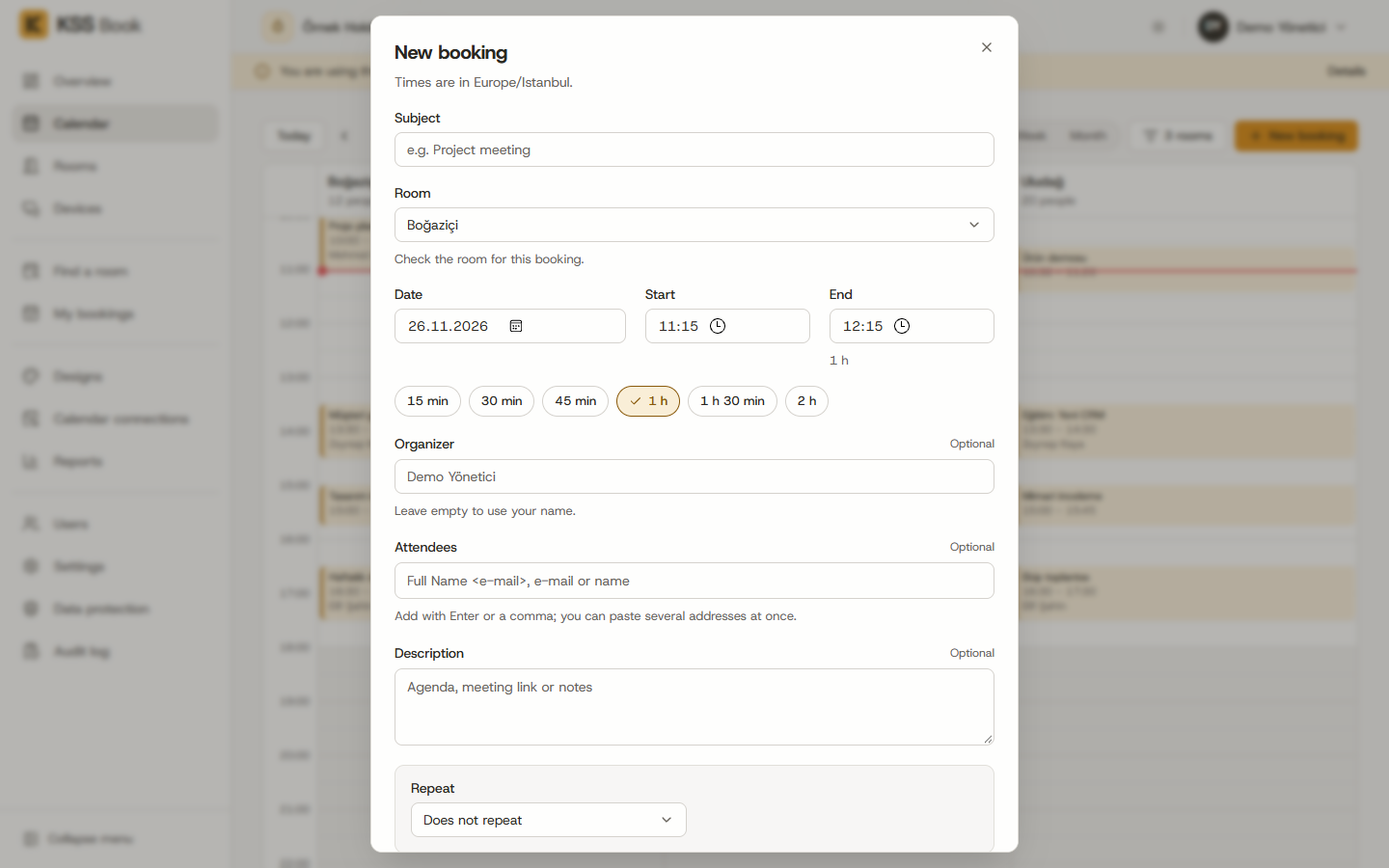
In the window enter the Subject, Room, Date, Start and End. Optionally add an Organizer (your name if left empty), a Description and Attendees. Save with Create booking. A booking can last at most 24 hours.
Moving and resizing
- Drag a booking to another time or room.
- Change its length by dragging its bottom edge.
- Esc cancels the drag.
Click a booking to open its details; Edit and Delete are there.
Recurring bookings
The Repeat options in the booking window: Daily, Every weekday, Weekly and Monthly. Choose the Frequency and, for weekly, the Days. It Ends After a number of meetings or On a date (at most one year ahead).
Before saving, the window shows how many meetings will be created. Dates when the room is taken are skipped and listed.
When changing or deleting a meeting of a series, choose the scope: This meeting only, This and following meetings or, when deleting, The whole series. Date, time and room can only be changed for a single meeting.
Rooms on connected calendars
- Meetings of Microsoft 365 rooms are read-only in the calendar; these rooms are booked from Outlook. Instant booking on the door display still works.
- Meetings of rooms on a connected calendar (Microsoft 365, Google Workspace) are synced up to 8 days ahead; for later dates look at that calendar.
Bookings follow the organization's booking rules. Administrators can book outside the rules after a warning (Save anyway).