

Rooms, buildings and floors
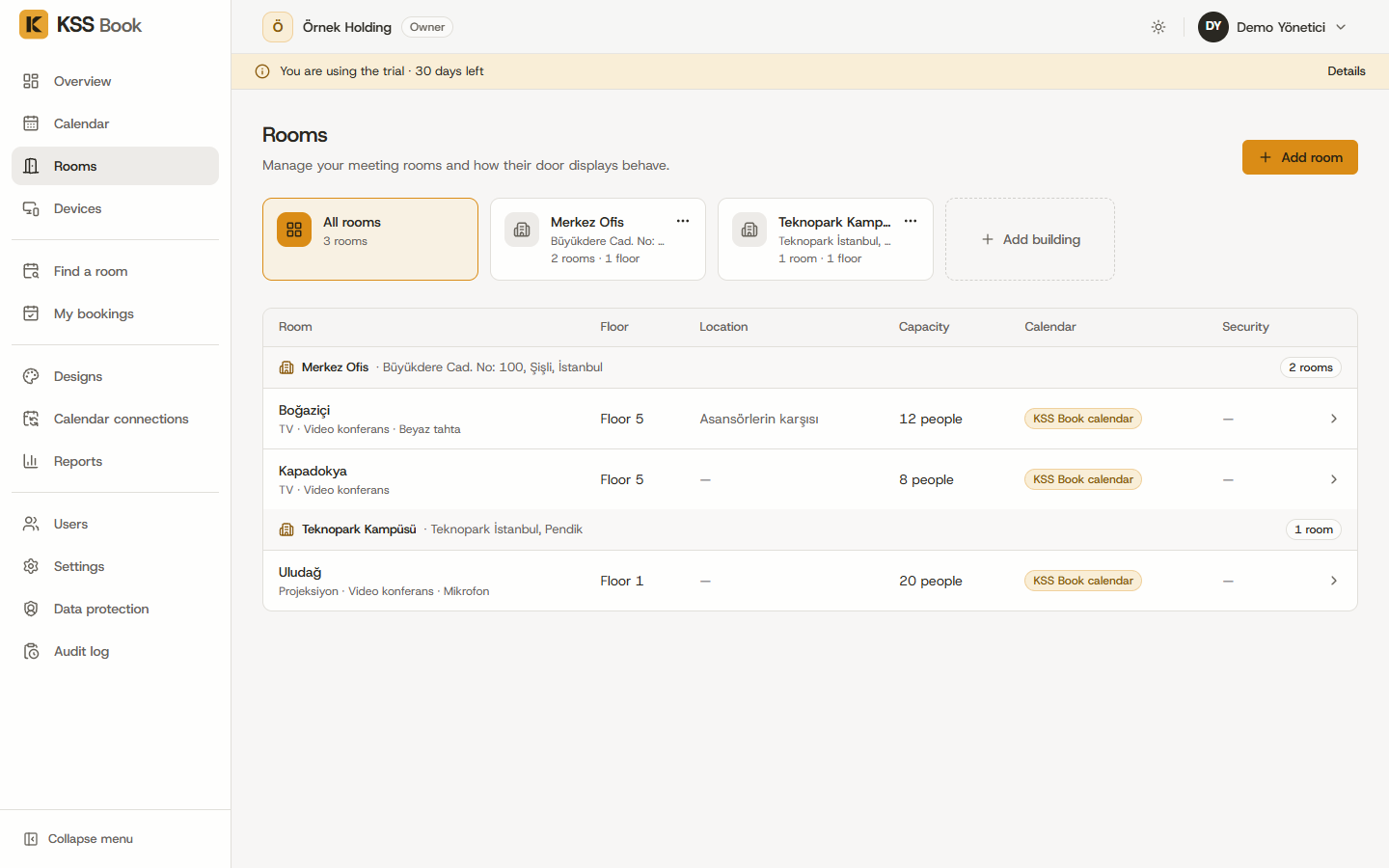
Adding a room
- On the Rooms page press Add room.
- Enter the Room name. Optionally enter the Capacity, Location (e.g. “North wing”), Building, Floor, Amenities (such as TV or video conferencing; type and press Enter) and Time zone.
- Save. The room page opens.
A new room uses the KSS Book calendar: its bookings are kept in KSS Book. If your rooms are set up in Microsoft 365, Google Workspace or Exchange, import them in bulk on the Calendar connections page or connect them later on the room's Calendar tab (Calendar connections).
If your license limits the number of rooms, no new room can be added once the limit is reached. You see the limit under Settings › License and plan.
Buildings
If you have several buildings, group the rooms by building:
- On the Rooms page add a building with Add building (name and, optionally, address).
- Choose the Building on the room's General tab.
The list groups rooms by building and floor. Filter by building and Filter by floor at the top narrow it down. The Calendar, Find a room and Overview pages can be filtered by building too.
- Change the order of buildings with Move earlier and Move later in the building's actions menu.
- When deleting a building that has rooms, you can move them to another building (Move rooms to) or choose Leave without a building.
Floors
The floor goes into the room's Floor field: “Ground”, “2”, “B1” and so on. Floors written as numbers are listed in order and shown as “Floor 2” on door and lobby displays.
Next step
Set the room's display behaviour and rules: Room settings.