

QR room page
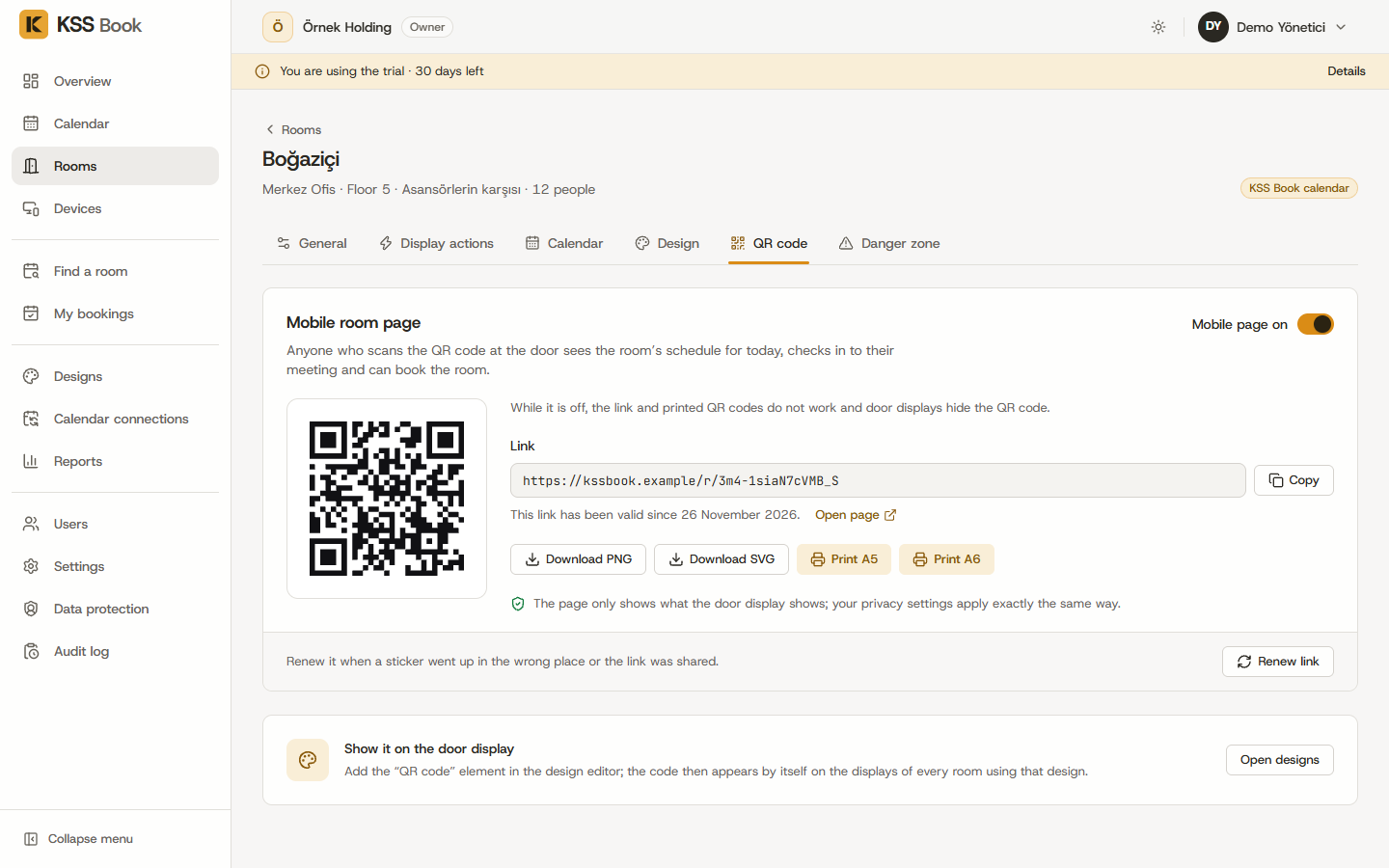
Every room has a Mobile room page that opens on a phone. Whoever scans the QR code at the door sees the room's schedule for today, checks in to their meeting and books the room. The page shows only what the door display shows; your privacy settings apply as they are.
Turning it on and printing
- Open the QR code tab on the room page.
- Turn on Mobile page on. While it is off, the link and printed QR codes do not work and the QR code on door displays is hidden.
- Print or download: Download PNG, Download SVG, Print A5 or Print A6.
To show the code on the door display too, add the QR code element in the design editor (Designs). It then appears by itself on the displays of rooms that use the design.
Renewing the link
If a sticker was put up in the wrong place or the link was shared, press Renew link. Old QR codes stop working at once; door displays show the new code by themselves. Replace the printed signs.
Privacy notice
If your organization has published a privacy notice, the room page links to it (Security and data protection).
If the phone cannot open the page
The QR code points to your organization's KSS Book address. If phones cannot reach that address (for example, when it only opens inside the company network and the phone is on mobile data), the page does not open. Connect the phone to the company Wi-Fi and try again; if it still fails, contact the KSS team.