

Booking portal: Find a room and My bookings
Employees book rooms in their own name in KSS Book. People with the employee role see these pages straight after signing in; administrators can use the same pages from the menu.
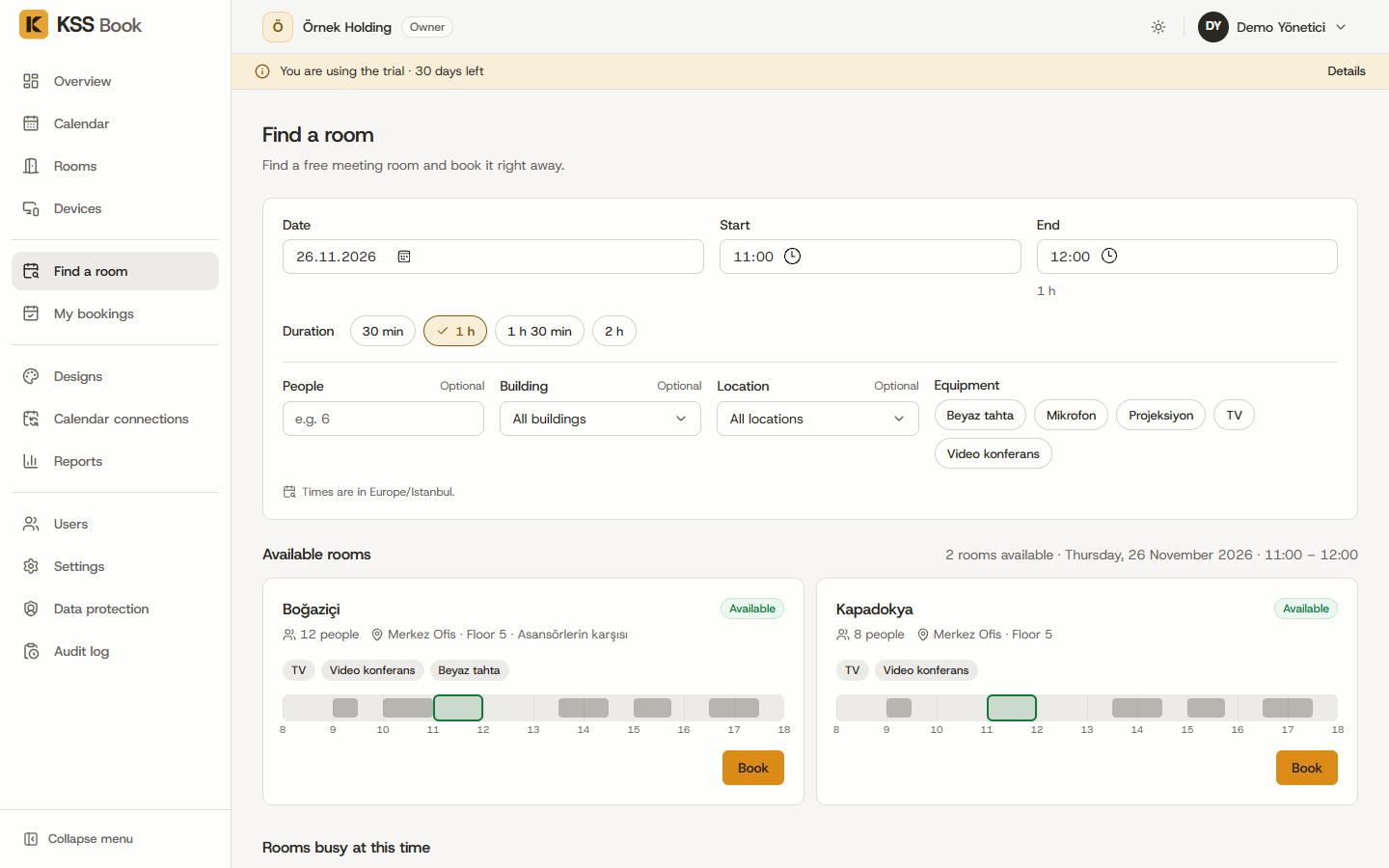
Find a room
- On the Find a room page choose the Date, Start and End, or set the end with the Duration buttons (30 min, 1 h, 1 h 30 min, 2 h).
- Optionally filter by People, Building, Location and Equipment.
- The Available rooms list shows each room's capacity, place, amenities and the day's occupancy. Press Book on a suitable room, enter the subject and confirm.
Rooms busy at this time are listed below. Microsoft 365 rooms are marked “Outlook”; book them from Outlook.
My bookings
The My bookings page shows your Upcoming bookings and the Last 30 days. You can edit or delete each booking; the room of a deleted booking can be booked again. Changing a meeting of a recurring series only changes that meeting.
Rules and privacy
- Bookings follow the organization's booking rules: longest booking, booking ahead, bookings per person and day, restricted rooms, holidays and closures.
- Employees can only create recurring bookings when Employees can create recurring bookings is on.
- Other people's meeting details are hidden according to the organization's privacy settings.