

Pairing a tablet with a room
The KSS team installs and prepares the door tablets. You do the pairing yourself when a tablet goes to a new room, moves, or is replaced. Each tablet is paired with a room (door display) or a lobby (lobby display).
Pairing
An unpaired tablet shows the heading Pair this display, a 6-character code (e.g.
ABC-234) and a QR code. The code renews by itself when it expires; use the one currently on the screen.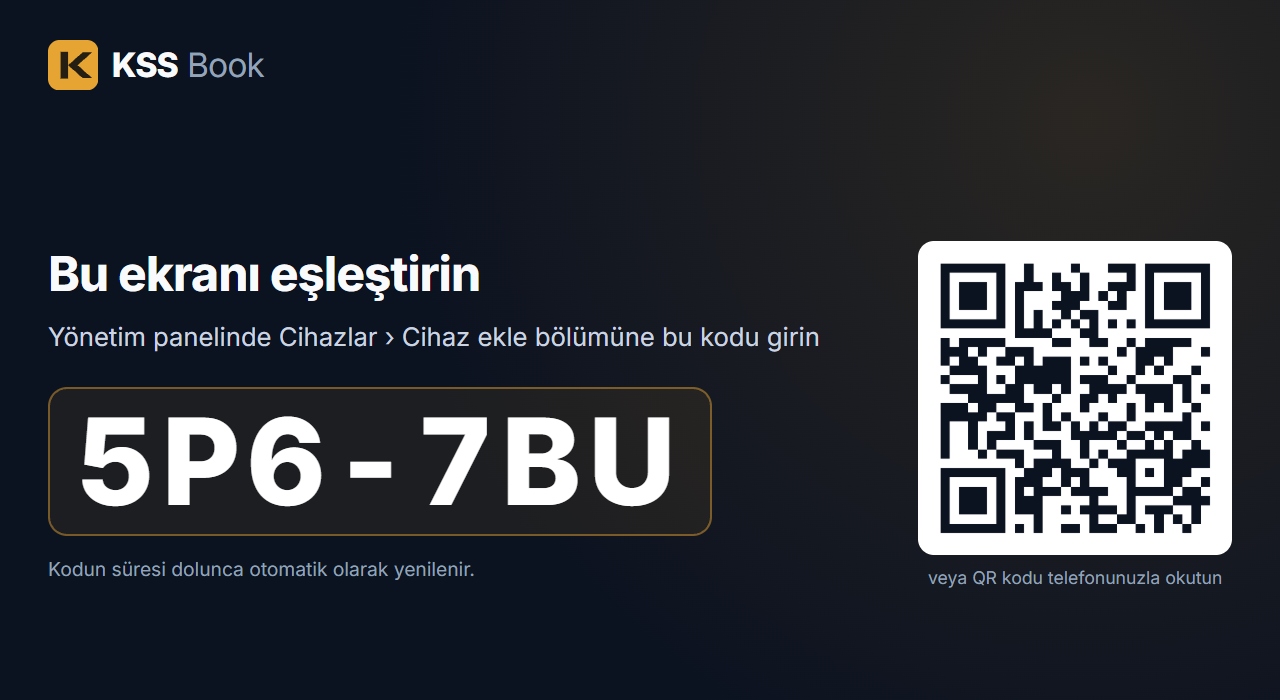
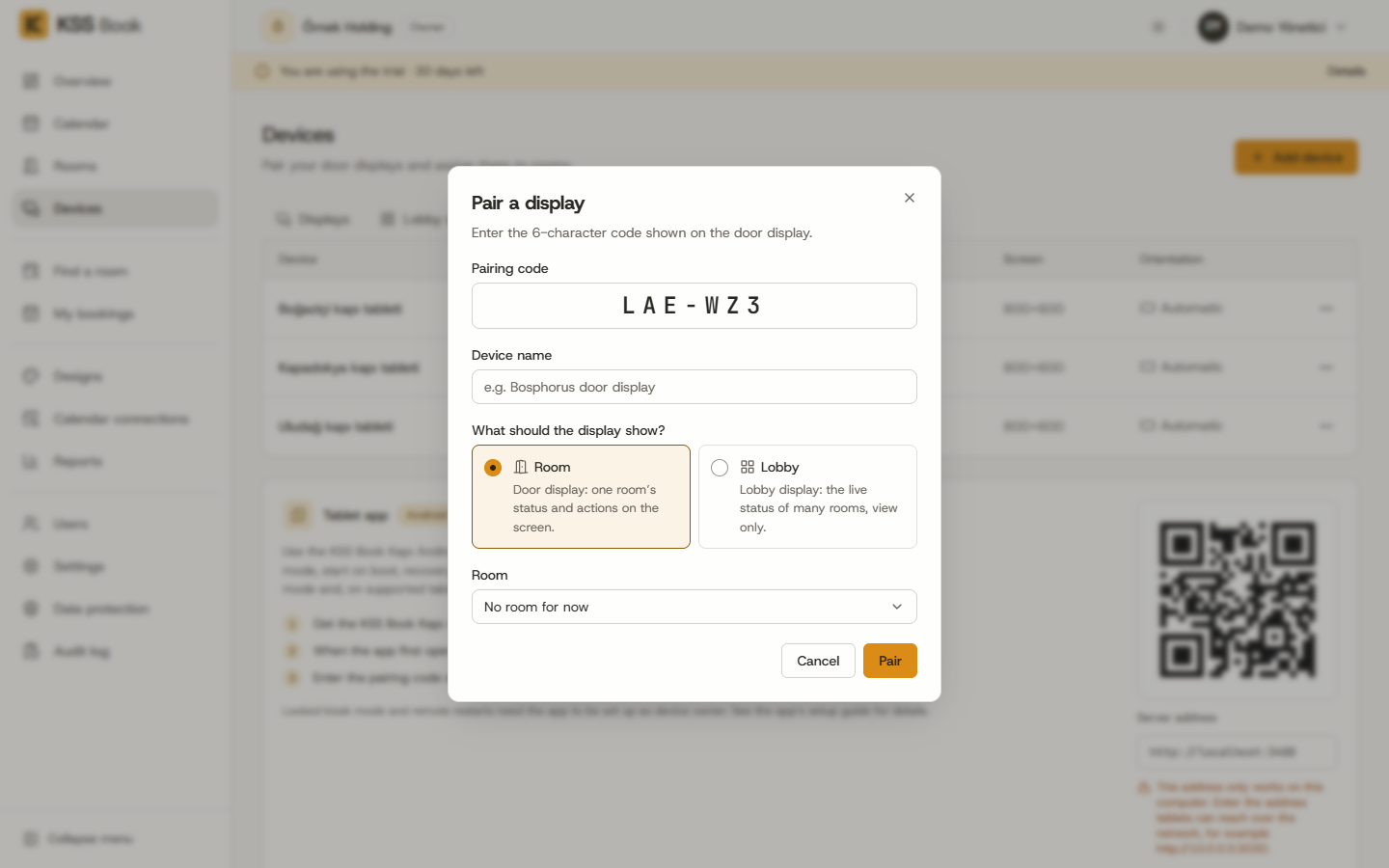
In the admin panel, press Add device on the Devices page. The Pair a display window opens. If you scan the QR code on the screen with your phone, the window opens with the code filled in.
Enter the Pairing code and a Device name (e.g. “Boğaziçi door tablet”).
Under What should the display show?, choose Room and pick the room. For a lobby display, choose Lobby (Lobby display).
Press Pair. Within a few seconds the screen shows the room's status.
The number of displays you can pair may be limited by your license; you see the usage under Settings › License and plan. Displays waiting to be paired do not count.
The Devices page
The Displays tab of the Devices page shows each display's room or lobby, Online or Offline status, when it was last seen, its version, screen size and orientation.
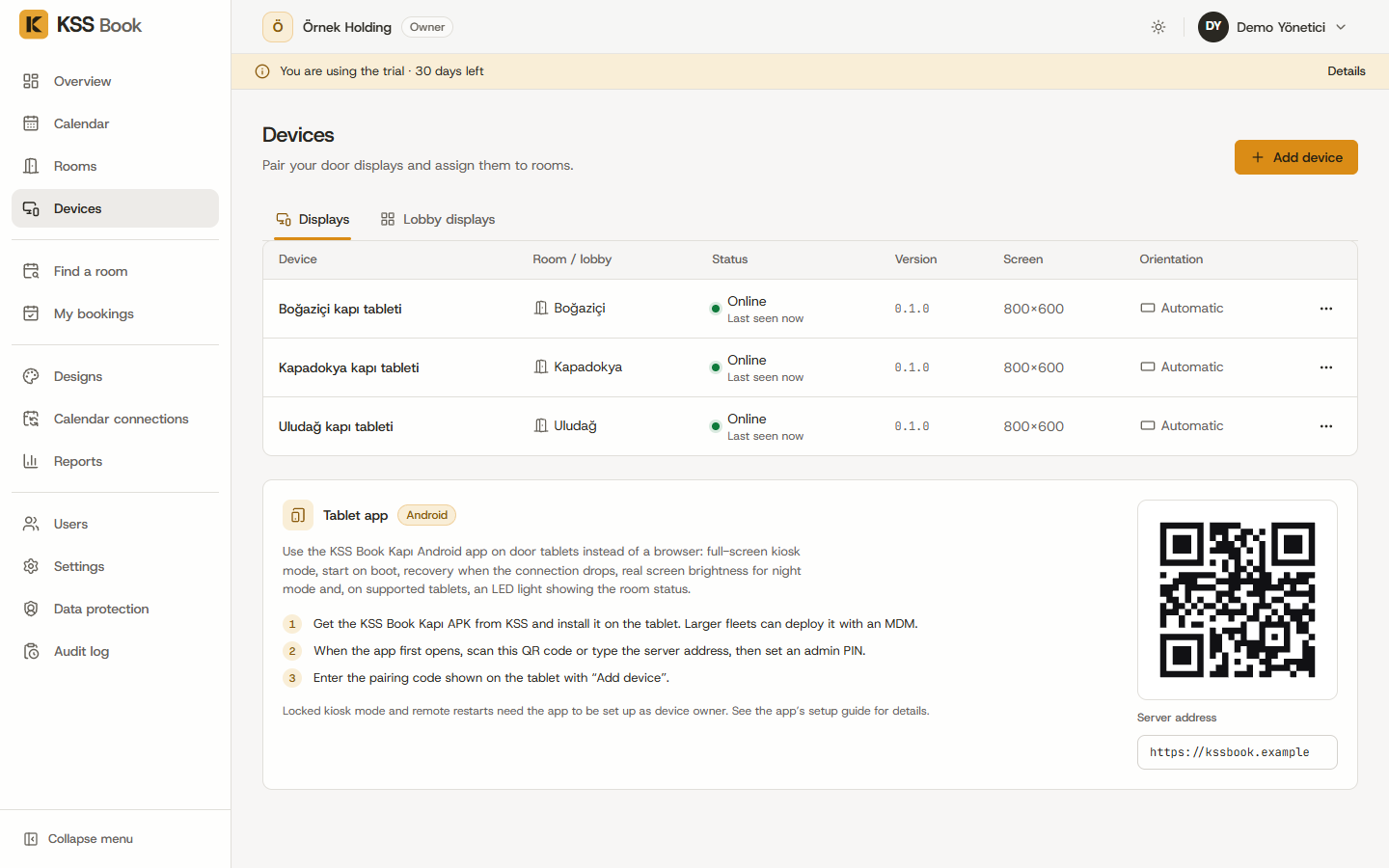
In the ⋯ menu of a display's row:
- Edit: in the Edit device window, change the name, the room or lobby and the Screen orientation (Automatic, Landscape, Portrait). When you move a tablet to another room, changing the room is all you need.
- Remote commands:
| Command | Effect |
|---|---|
| Reload | The display reloads the page |
| Identify | The device and room name appear in large letters for 10 seconds |
| Restart | The tablet restarts (only on tablets KSS set up in kiosk mode) |
If the display is offline, the command is delivered if it connects within 2 minutes.
- Remove: the pairing is removed; the display shows a pairing code again and frees its place in the license.
Offline display alerts
With Report offline displays turned on in the Display alerts card of the Settings page, owners and administrators get an e-mail when a display loses its connection during working hours. Alert delay (minutes) can be 5 to 240. Optionally you also get an e-mail when the display is back.
Troubleshooting
- The pairing code is not accepted: enter the code currently on the tablet. If the error stays, reload the tablet. If the license's display limit is reached, remove the pairing of displays you no longer use.
- The display shows as offline: check that the tablet is on, charging and connected to the company network; look at the last seen time on the Devices page. If it continues, contact the KSS team.
- “Restart” is missing: this command only exists on Android tablets KSS set up in kiosk mode.