

Designs
You decide how the door display looks on the Designs page. Rooms without a design show the Standard template, which is the default Durum theme of the gallery.
Template gallery
New design opens the Template gallery. Filter the themes with the search box, by category, by screen orientation (Landscape, Portrait) and by the room status in the preview (Available, Occupied, Check-in). You can also preview a theme on your own photo.
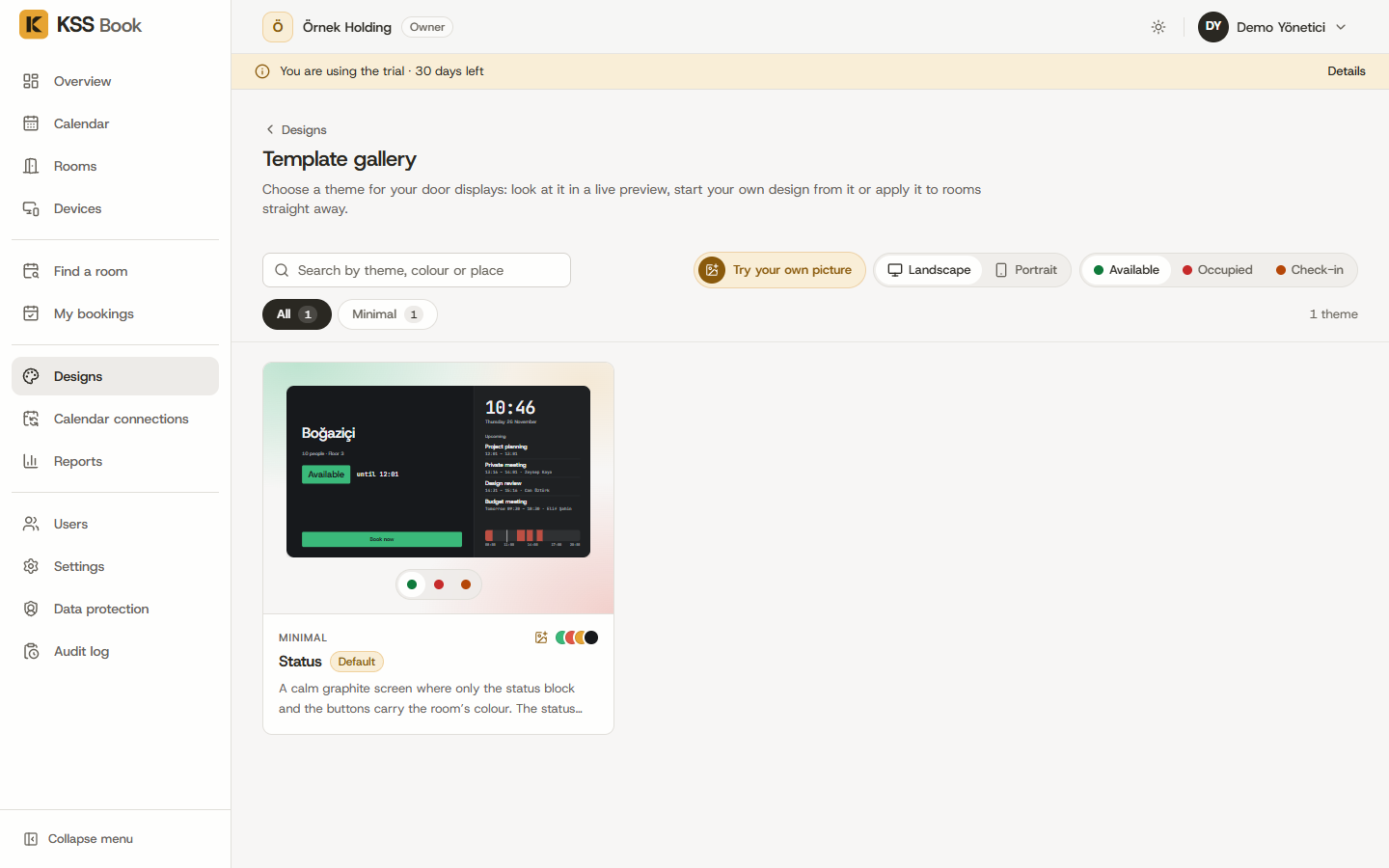
Opening a theme shows a live preview with your organization's name and logo. Then:
- Start with this template: creates your own design from the theme and opens it in the editor.
- Apply to rooms: creates designs for the orientations you choose (Landscape displays, Portrait displays) and assigns them straight to the rooms you choose.
The Durum template
Durum (Turkish for “status”) is KSS Book's default theme: on a calm graphite background only the status block and the buttons carry the room's colour (green while available, red while occupied, yellow while awaiting check-in). On the left are the room name, the status and how long it lasts and the current meeting; on the right the clock, the day's meetings and the timeline. It comes in a landscape and a portrait version.
The design editor
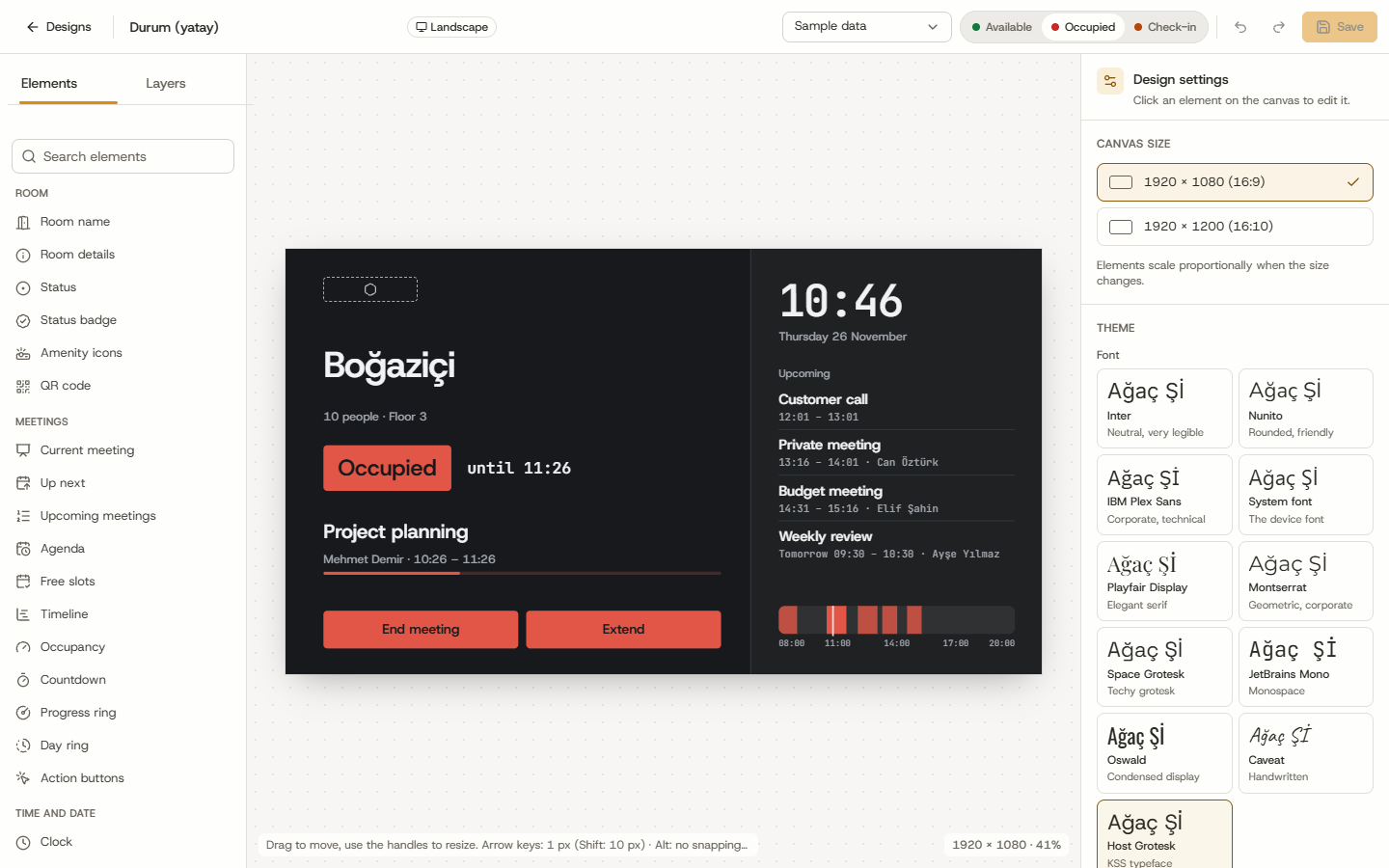
- The Elements tab lists the elements you can add in groups: room name, room details, status, status badge, amenity icons, QR code; current meeting, next meetings, agenda, free slots, timeline, occupancy, countdown, action buttons; clock, date, image, logo, shape and more. Use Search elements to find one and click or drag it onto the canvas.
- The Layers tab shows the elements on the canvas in stacking order. Manage an element with Bring forward, Send backward, Duplicate and Delete.
- The panel on the right shows the settings of the selected element. With nothing selected it shows the Design settings: Canvas size and the theme (font, colours).
- Drag elements to move them and resize them with the handles. Arrow keys move by 1 px, with Shift by 10 px; Alt turns snapping off, Ctrl+D duplicates, Delete deletes, Ctrl+Z undoes.
- The Available, Occupied and Check-in buttons in the top bar change the Preview state. With Preview data you can see a real room's data instead of sample data.
- Images must be PNG, JPEG or WebP, at most 5 MB.
- Save changes with Save; you get a warning if you leave without saving.
Each design in the list has Edit, Duplicate and Delete. Rooms using a deleted design go back to the standard template.
Assigning a design to a room
- Open the Design tab on the room page.
- Choose a design for Landscape displays and for Portrait displays.
Each display shows the landscape or portrait design depending on its orientation. You can fix a display's orientation with Screen orientation on the Devices page. To assign a design to many rooms at once, use Apply to rooms in the gallery.
Logo and privacy
- The logo on the door display is uploaded on the Branding card of the Settings page.
- Which meeting details are shown is chosen on the Privacy card of the Settings page (Display actions).