

Display actions
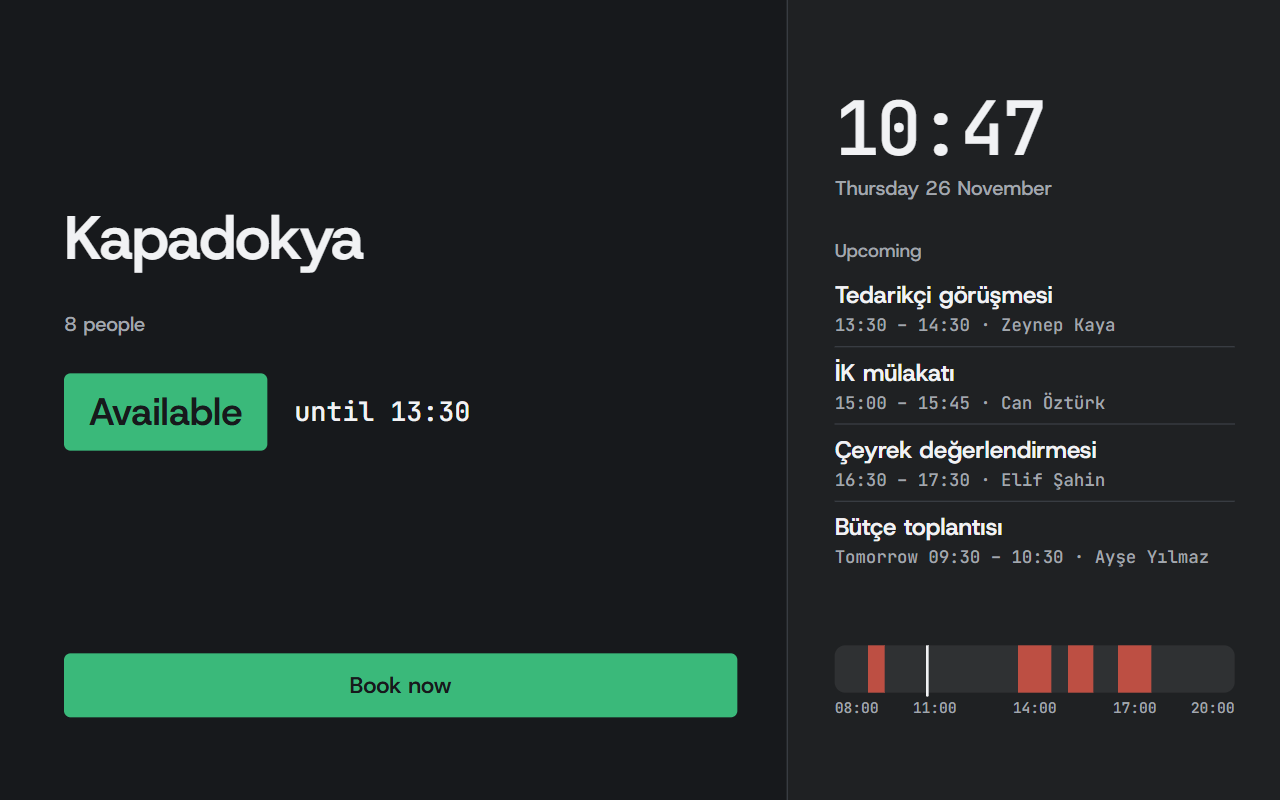
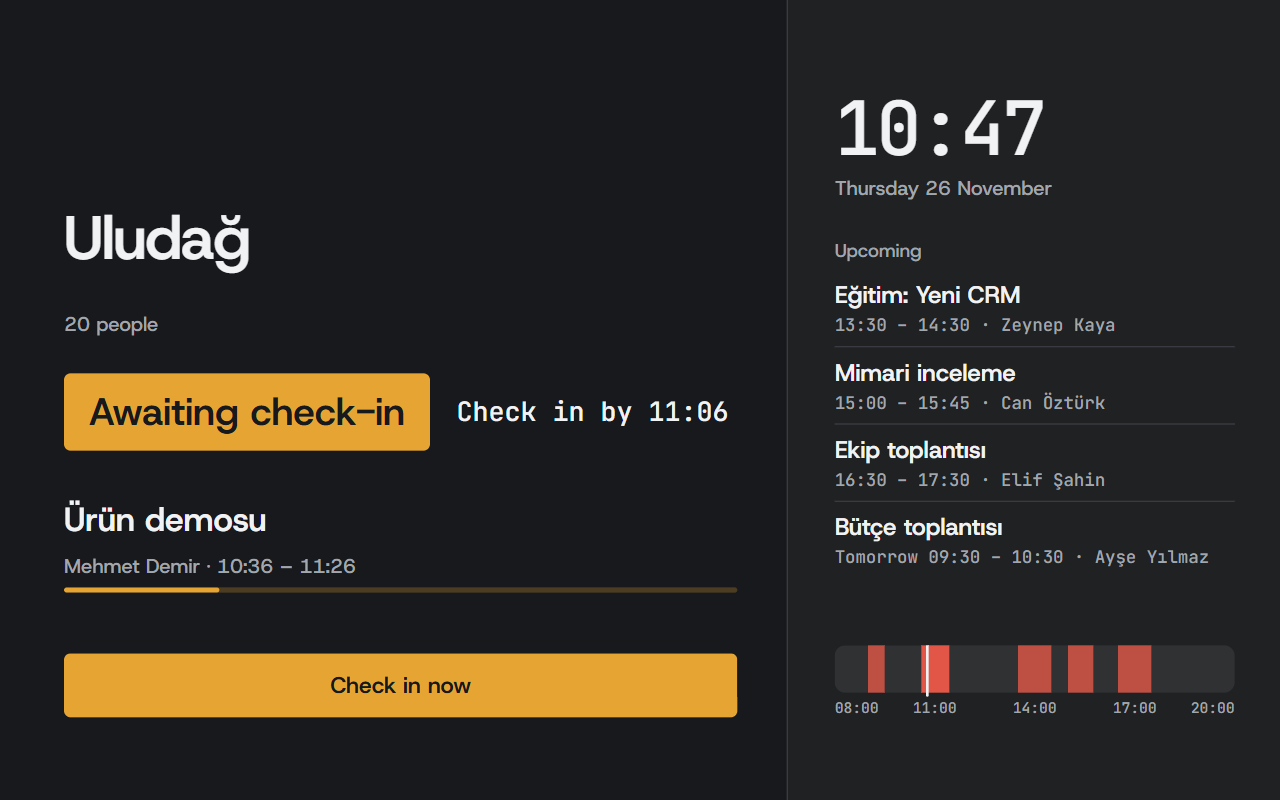
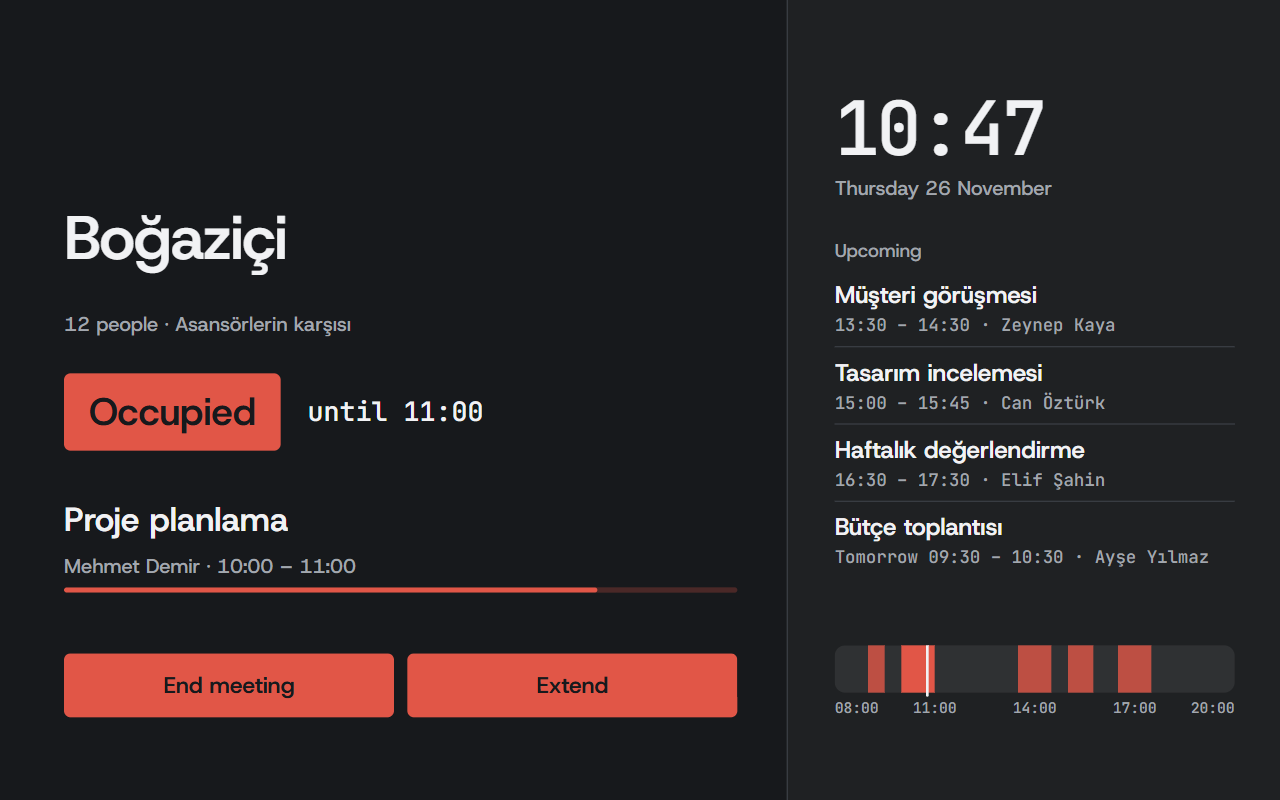
The door display shows the room's status, the current meeting, the next meetings and the day's timeline. Employees can book the room, check in, end or extend a meeting on it. You choose which actions are on in the room's Display actions tab.
Room statuses
| Status | When? | On the screen |
|---|---|---|
| Available | No meeting in the room right now | How long it stays free |
| Occupied | A meeting is under way | Subject, organizer and end time |
| Awaiting check-in | In a room that requires check-in, a meeting is starting or started | The latest time to check in |
Actions on the display
- Book now: shown while the room is free. The person picks a duration (How long?) and the meeting starts at once. You set the offered durations with Booking durations. If the room is not free for that long, the display says so.
- Check in now: in rooms that require check-in, confirms that people have arrived.
- End meeting: ends the current meeting after a confirmation; the room shows as available right away. On the tab this action is called End early.
- Extend: extends the current meeting (Extend by). The options come from Extension durations; a meeting cannot be extended into the next booking.
Each action can be turned on or off on the Display actions tab.
Connected calendars
If the room's calendar is in Microsoft 365, Google Workspace or Exchange, display actions are written to that calendar too. In Google Calendar only the organizer can change a meeting's time, so a meeting organized by someone else cannot be extended on the display; the display says so.
PIN
With Require a PIN for actions on, booking, ending and extending are confirmed with the room PIN. Check-in never asks for a PIN.
- On the Display actions tab, press Set PIN in the Room PIN section.
- Enter a 4–8 digit number. The PIN is stored securely and cannot be viewed later; if you forget it, set a new one with Change PIN.
If a PIN is required but none is set, the display does not ask for one.
Check-in and room release
Turn on check-in so that unused bookings do not keep the room busy:
- Require check-in: attendees check in on the display as the meeting starts.
- When does check-in open?: how many minutes before the start (0–30).
- When is the room released?: how many minutes after the start the room is freed if nobody checked in (1–60).
A released booking is marked as released in the calendar. On connected calendars (Microsoft 365, Google Workspace, Exchange) the invitation is declined on behalf of the room and the organizer is notified. Bookings are only released while the room's display is online; if the display is off, the meeting is not cancelled.
Night mode
Dim or turn off the door display outside working hours. In the Night mode section choose an option for Outside working hours:
- Keep the screen on: the screen always runs at normal brightness.
- Dim the screen: the content stays visible at low brightness (Brightness can be set).
- Turn the screen black: the screen goes black and only shows a small clock.
The hours when the screen is on are the Working hours of the organization or Custom hours for the room. A touched screen wakes for 60 seconds; the screen wakes by itself 10 minutes before a meeting. Holidays and closures do not count as working hours either.
LED light colours
On meeting room tablets with LED lights (supported models set up by KSS), the light on the frame shows the room's status from afar:
| Light | Status |
|---|---|
| Green | Available |
| Red | Occupied |
| Yellow | Awaiting check-in |
What the display shows
Whether the meeting subject and the organizer are shown is chosen on the Privacy card of the Settings page: Show meeting subject, Show organizer and Hide details of private meetings. With the subject off, the display only shows that the room is occupied; meetings marked private in the calendar show as “Private meeting”.
To change the display's look: Designs.