

Microsoft 365
KSS Book reads the calendars of the Exchange Online room mailboxes of your meeting rooms and writes what happens on the door display back to Outlook. The steps on this page are for your organization's Microsoft 365 administrator. A KSS Book administrator makes the KSS Book side of the settings on the Calendar connections page.
How it works
- Each room is matched with a room mailbox address (e.g.
boardroom@company.example). - Rooms with an open door display sync about every minute, other connected rooms every 10 minutes. Sync now on the room's Calendar tab updates without waiting.
- Display actions are written to the room calendar:
| Action on the display | What happens in Outlook |
|---|---|
| Book now | A new event is created in the room calendar. |
| End meeting / Extend | The end time of the event in the room is updated. |
| No check-in (room released) | The invitation is declined on behalf of the room; the organizer is notified. Bookings made on the display are deleted. |
A changed end time only updates the copy in the room's calendar. Microsoft 365 rooms are read-only in the KSS Book calendar and are booked from Outlook; Outlook applies their booking rules.
For your IT administrator: choosing a method
On the Calendar connections page, choose Microsoft 365 (under Choose how to connect when there is no connection yet, otherwise with Add connection). Three methods can show:
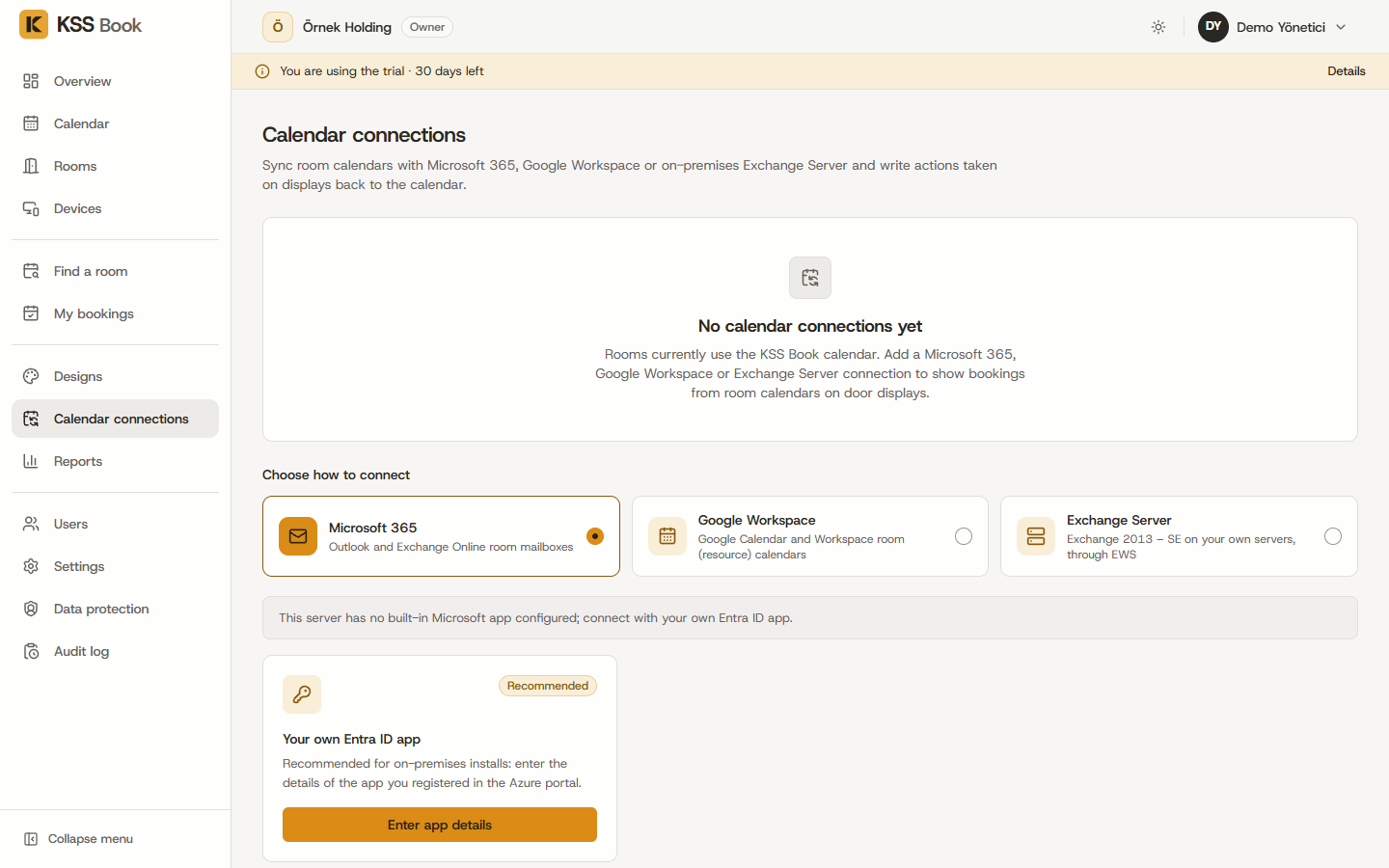
| Method | When |
|---|---|
| Connect with admin consent | When KSS Book's shared app is available. The shortest way. |
| Your own Entra ID app | When you want the app registered in your own tenant. |
| Sign in with an account | When application permissions cannot be granted; with a service account for the room calendars. |
The first two use application permissions: they do not depend on anyone's session and are not affected by password changes. Which methods you see depends on your installation.
Connecting with admin consent
- A Microsoft 365 global administrator chooses Calendar connections › Add connection › Connect with admin consent in KSS Book and approves the permissions on Microsoft's consent screen.
- Then limit access to room mailboxes. In the commands, use the client ID shown in the connection window.
Connecting with your own Entra ID app
1. Register the app
- Microsoft Entra admin center → Applications → App registrations → New registration.
- Name:
KSS Book. Supported account types: Accounts in this organizational directory only. - Register. Note the Directory (tenant) ID and Application (client) ID.
The Add connection › Your own Entra ID app window in KSS Book shows the redirect address and the permission list, ready to copy. The redirect address is only needed for Sign in with an account.
2. Create a client secret
Certificates & secrets → New client secret. Copy the Value column (not the Secret ID); it is shown only once.
The secret expires. Before it does, create a new one and replace it with Update client secret on the connection card in KSS Book; otherwise syncing stops.
3. Grant API permissions
API permissions → Add a permission → Microsoft Graph → Application permissions:
| Permission | Why |
|---|---|
Calendars.ReadWrite | Read the room calendars and write what is done on the display |
Place.Read.All | List the rooms in the directory with Import rooms (optional) |
Then press Grant admin consent for <tenant>.
WARNING
The Calendars.ReadWrite application permission granted in Entra ID gives access to all mailboxes in the tenant. To limit access to room mailboxes, follow the RBAC steps.
4. Add the connection in KSS Book
- Calendar connections › Add connection › Your own Entra ID app.
- Enter the tenant ID, client ID and secret; authorization type Application permission.
- Press Test on the card and check access with a room mailbox address.
- Pick rooms from the directory with Import rooms, or add rooms yourself and enter the connection and mailbox address on the room's Calendar tab.
Connecting by signing in with an account
If application permissions cannot be granted, an account with access to the room calendars (preferably a service account opened for this) signs in with Microsoft once.
Register an app and create a secret as above. With this method, adding the redirect address shown in the KSS Book window under Authentication → Add a platform → Web is required.
API permissions → Microsoft Graph → Delegated permissions:
Calendars.ReadWrite.Shared,User.Read,offline_access,openid,profile,email. Grant admin consent.Give the service account Editor rights on each room calendar:
powershellConnect-ExchangeOnline Add-MailboxFolderPermission -Identity "boardroom@company.example:\Calendar" ` -User "kss-book@company.example" -AccessRights EditorIn mailboxes set to another language, the folder name may differ (e.g.
Takvim):Get-MailboxFolderStatistics boardroom@company.example -FolderScope Calendar | Select NameIn KSS Book, add the connection with authorization type Account sign-in, press Sign in with Microsoft and sign in with the service account.
If the account's password changes or its sessions are revoked, the connection goes to Sign-in required; reconnect with Sign in again on the card.
Limiting access to room mailboxes
With RBAC for Applications in Exchange Online, let the KSS Book app reach room mailboxes only (recommended):
Connect-ExchangeOnline

# 1) Register the app's service principal in Exchange.
#    ObjectId: Entra ID → Enterprise applications → KSS Book → "Object ID"
#    (NOT the object ID of the app registration)
New-ServicePrincipal -AppId "<client-id>" -ObjectId "<enterprise-app-object-id>" `
  -DisplayName "KSS Book"

# 2) Create a scope that only covers room mailboxes.
New-ManagementScope -Name "KSS Book - Rooms" `
  -RecipientRestrictionFilter "RecipientTypeDetails -eq 'RoomMailbox'"

# 3) Assign the calendar role limited to that scope.
New-ManagementRoleAssignment -Name "KSS Book - Calendars" -App "<client-id>" `
  -Role "Application Calendars.ReadWrite" -CustomResourceScope "KSS Book - Rooms"

# 4) Check: InScope must be True for a room and False for a user.
Test-ServicePrincipalAuthorization -Identity "<client-id>" -Resource "boardroom@company.example"
Test-ServicePrincipalAuthorization -Identity "<client-id>" -Resource "alice@company.example"
Then remove the Calendars.ReadWrite application permission in Entra ID. Entra ID permissions add to Exchange RBAC assignments; as long as that permission stays, the scope has no effect. Place.Read.All can stay. Changes can take 30 minutes to 2 hours to apply.
Room mailbox settings
By default Exchange removes the meeting subject in room mailboxes and puts the organizer's name in its place. For the door display to show the real subject:
Get-EXOMailbox -RecipientTypeDetails RoomMailbox -ResultSize Unlimited |
  Set-CalendarProcessing -AddOrganizerToSubject $false -DeleteSubject $false `
-DeleteComments $false -RemovePrivateProperty $false- The setting only affects invitations sent from now on.
RemovePrivateProperty $falsekeeps the “Private” flag of meetings marked private in Outlook; KSS Book hides their details according to the Privacy card on the Settings page.
Sign in with Microsoft
For employees to sign in to KSS Book with their Microsoft 365 accounts, the owner uses the Single sign-on (SSO) card of the Settings page (Users and roles). If you use your own Entra ID app, your IT administrator:
- Registers an app as above (the app registered for the calendar works too).
- Adds the card's Redirect URI under Authentication → Add a platform → Web. No extra API permission is needed.
- Creates a client secret and gives the tenant ID, client ID and secret to the owner.
With KSS Book's shared app only the tenant ID is needed; if user consent is off in your tenant, an Entra administrator consents to the app once. We recommend requiring multi-factor authentication with Conditional Access in Entra ID.
Troubleshooting
| Symptom | Likely cause and fix |
|---|---|
| Test: “Access denied by Microsoft 365” | Admin consent not granted, a permission missing or the mailbox outside the RBAC scope. Check with Test-ServicePrincipalAuthorization. |
| Test: authentication error | Wrong tenant or client ID, or the secret expired. Update client secret. |
| The display shows the organizer, not subject | Set-CalendarProcessing not applied (only new invitations are fixed). |
| Import rooms is empty or fails | No Place.Read.All permission, or rooms are not set up in the Places directory. Add rooms yourself. |
| Connection shows Sign-in required | With the delegated method the account's session ended. Press Sign in again. |
| Error page after signing in with Microsoft | The redirect address in the app registration must match the one on the card exactly. If it continues, contact the KSS team. |
| “This Microsoft account cannot sign in” | The account's tenant or domain is not allowed on the Single sign-on (SSO) card. |
| “The Microsoft account has no KSS Book account” | Invite the person or turn on Join automatically on first sign-in. |